IT Support

    Function Keys F1–F12: What Each One Does and How to Use Them at Work

    19 May 2017

    Function Keys F1–F12: What Each One Does and How to Use Them at Work

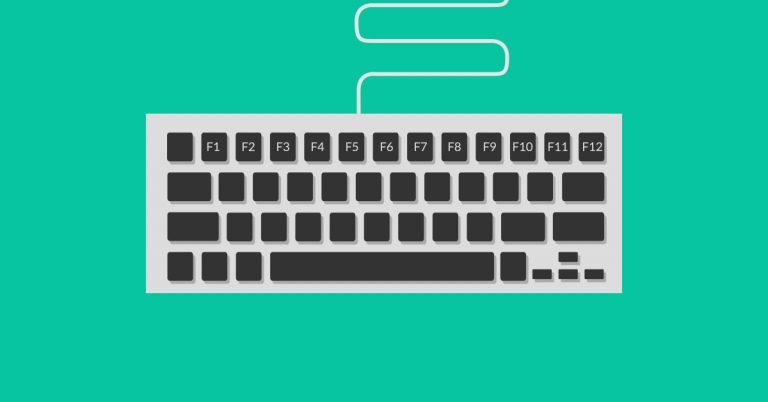
    Function keys are the row of keys labelled F1 to F12 along the top of your keyboard. Most people ignore them. The ones who don't get things done noticeably faster. This guide explains what every function key does, which ones matter most in a business setting, and how to get more out of them without any technical knowledge.

    What is a Function Key?

    A function key is a programmable shortcut key on a keyboard. Unlike letter and number keys, function keys don't type characters — they trigger actions. Pressing F5 doesn't type the number five; it refreshes the page you're on. Pressing F7 in Microsoft Word doesn't type an F — it opens the spell checker.

    Every Windows keyboard has twelve function keys: F1 through F12. They sit in a row across the top, usually separated slightly from the rest of the keyboard by a small gap. On laptops, function keys are often shared with other keys (brightness, volume, media controls), which is why your F5 key might also have a sun icon on it. More on that in a moment.

    Function keys have been a standard part of keyboards since the 1980s, and despite decades of touchscreens and touchpads, they remain one of the fastest ways to carry out common tasks without taking your hands off the keys.

    What Does Each Function Key Do? (F1–F12 Explained)

    Here's what every function key does by default on a Windows PC — plus the combinations that double their usefulness.

    F1 — Help

    Press F1 in almost any Windows programme and it opens the Help screen for that programme. If you're in Microsoft Word and can't find a particular setting, F1 is the fastest route to the answer. In a browser, F1 often opens the browser's support page. If nothing else comes to mind when a staff member is stuck, telling them to try F1 is a genuinely useful first step.

    F2 — Rename

    Select a file or folder on your desktop or in File Explorer, press F2, and the name becomes editable immediately. No right-clicking, no menu navigation — just select and press. This is one of the most underused time-savers in Windows. If your team regularly organises files, F2 alone is worth remembering.

    F3 — Search

    F3 opens the search function within the active application. In File Explorer, it jumps straight to the search bar. In most browsers, it opens Find on Page (the same as Ctrl+F). If you're looking for a word in a document or a file in a folder, F3 often gets you there in one keypress.

    F4 — Address Bar / Close Window

    In File Explorer and most browsers, F4 moves focus to the address bar so you can type a new location or web address. Combined with Alt, it does something more dramatic: Alt + F4 closes the active window. This is one of the oldest and most-used keyboard shortcuts in Windows — and it works almost everywhere.

    F5 — Refresh

    F5 refreshes the current page in a browser, reloads a document, or forces a screen update. If a page hasn't loaded properly or you want to see the latest version of a live document, F5 is the answer. Ctrl + F5 does a hard refresh, clearing the browser's cached version of the page — useful if a website looks broken or out of date.

    F6 — Jump to Address Bar

    In browsers, F6 moves the cursor directly to the address bar so you can type a new URL. It's a faster alternative to clicking at the top of the screen. In some applications, F6 cycles between panels or sections of the interface.

    F7 — Spell Check

    In Microsoft Word, F7 opens the spell check and grammar check dialogue. In Outlook, it does the same for the email you're composing. If your team sends a lot of written communications, this is worth knowing. F7 isn't universally supported the way F1 or F5 is — in browsers, for example, it does nothing useful — but inside Microsoft 365 applications it earns its place.

    F8 — Boot Menu / Safe Mode

    F8 is the key you press while a Windows PC is starting up to access the boot options menu, including Safe Mode. This is primarily an IT troubleshooting key and most staff will never need it directly — but it's useful to know if you ever need to pass instructions to someone remotely. Note that on Windows 10 and 11, the F8 startup method has been replaced in most cases by the Shift + Restart approach.

    F9 — Refresh / Send and Receive

    In Microsoft Word, F9 updates the document's fields (such as page numbers and dates). In Outlook, F9 sends and receives emails — triggering a manual inbox refresh when you want to check for new messages without waiting for the automatic sync interval.

    F10 — Menu Bar

    F10 activates the menu bar of the active application, allowing you to navigate menus without a mouse. Shift + F10 is particularly useful: it opens the right-click context menu for whatever is currently selected. If someone's mouse stops working unexpectedly, Shift + F10 lets them access right-click options using just the keyboard.

    F11 — Full Screen

    F11 toggles full screen mode on and off in most browsers. If someone presses it accidentally, their browser appears to have lost its address bar and tabs — pressing F11 again brings everything back. Worth telling your team about this one; it generates a surprising number of “my browser has disappeared” support calls.

    F12 — Save As / Developer Tools

    In Microsoft Word and Excel, F12 opens the Save As dialogue, allowing you to save the document with a new name or in a different location. In browsers, F12 opens the browser developer tools — useful for IT teams diagnosing web issues, but not something most business users need to touch.

    Function Keys in Microsoft 365 — The Shortcuts Worth Knowing

    Ready to protect your business?

    Get My Free Quote →

    Microsoft Office applications make particularly heavy use of function keys. Here are the combinations that save the most time for typical business users.

    Microsoft Word

    • F1 — Open Help
    • F4 — Repeat the last action
    • F5 — Open the Find and Replace dialogue (Go To tab)
    • F7 — Open spell and grammar check
    • F8 — Extend selection mode
    • F12 — Save As
    • Shift + F3 — Cycle text between uppercase, lowercase, and title case
    • Ctrl + F4 — Close the document

    Microsoft Excel

    • F2 — Edit the selected cell
    • F4 — Toggle absolute/relative cell references (essential for formulas)
    • F5 — Open the Go To dialogue to navigate to any cell
    • F9 — Calculate all worksheets in all open workbooks
    • F11 — Insert a chart from selected data
    • F12 — Save As
    • Alt + F1 — Insert a chart in the current sheet

    Microsoft Outlook

    • F3 — Open the search function
    • F4 — Open Search in a message
    • F7 — Spell check a message being composed
    • F9 — Send and receive all emails
    • F12 — Save As (save an email to a file)

    Function Keys on Laptops — The Fn Key Explained

    On many laptops, the F1–F12 keys are shared with secondary functions like screen brightness, volume control, and keyboard backlight. A small icon on each key indicates what the secondary function is.

    Whether pressing F5 refreshes your browser or adjusts your screen brightness depends on how the laptop is configured:

    • If the standard function key action fires by default, and you need the secondary function (brightness, volume, etc.), you hold Fn while pressing the key.
    • If the secondary function fires by default, and you need the standard F-key action, you hold Fn while pressing the key.

    Most business laptops default to the standard F-key actions (F1 = Help, F5 = Refresh), which is the setting most useful for day-to-day work. You can usually change this in the laptop's BIOS settings or, on many models, by pressing Fn + Esc to toggle the Fn lock on and off. The Fn lock key often has a small padlock icon.

    If your staff find that their function keys aren't behaving as expected after moving to a new laptop, Fn lock is almost always the cause. Your IT support provider should be able to set this to the preferred default across all machines.

    The Function Key Shortcuts That Save Business Teams the Most Time

    Not all function keys are equally useful in a business context. Based on the tasks most office staff perform daily, these are the ones worth committing to memory — or passing on to your team.

    • Alt + F4 — Close any window quickly. Faster than reaching for the X button and works when a programme is unresponsive.
    • F2 in File Explorer — Rename files without right-clicking. Speeds up file management noticeably when organising shared drives.
    • F5 in a browser — Refresh a page that hasn't loaded correctly. Ctrl + F5 for a full cache-clear refresh.
    • F7 in Word or Outlook — Run spell check before sending anything important. A quick habit that prevents embarrassing errors.
    • F4 in Excel — Toggle cell reference types when building formulas. Saves significant time for anyone working with spreadsheets regularly.
    • F11 in a browser — Toggle full screen. Know this one to avoid “my browser has disappeared” support calls.
    • F12 in Word or Excel — Save As. The fastest way to save a copy of a document under a different name.

    Common Problems with Function Keys (and How to Fix Them)

    Ready to protect your business?

    Get My Free Quote →

    Function key issues are among the most common minor IT queries. Here's what causes them and how to resolve them.

    Function key does something unexpected (e.g. changes brightness instead of refreshing the page).
    This is almost always Fn lock. On most laptops, pressing Fn + Esc toggles between standard F-key mode and media-key mode. Check whether your keyboard has a lock indicator and toggle it.

    Function key does nothing at all.
    In a browser, many function keys have limited or no default actions. Try the same key in a Microsoft 365 application to confirm the key itself is working. If it still does nothing, the key may need a driver update or, on older keyboards, may simply be worn out.

    F8 doesn't enter Safe Mode on startup.
    On Windows 10 and 11, the traditional F8 at boot method was disabled to speed up startup times. Use Shift + Restart from the Start menu instead to access boot options.

    F1 opens a browser tab instead of the application's Help.
    Some browsers intercept F1 and redirect to their own help pages. If this is causing issues, there's no simple workaround within the browser — F1 for application help works best when the browser is not the focused window.

    Frequently Asked Questions About Function Keys

    What do the function keys F1 to F12 do?

    Function keys F1 to F12 each trigger a specific action in Windows and its applications. F1 opens Help, F2 renames a selected file or folder, F3 opens search, F4 closes a window when combined with Alt, F5 refreshes a page, F6 moves to the address bar, F7 runs spell check in Microsoft apps, F8 was the Windows boot menu key, F9 refreshes fields and triggers email send/receive in Outlook, F10 activates the menu bar, F11 toggles full screen, and F12 opens Save As in Microsoft Office. Many of these keys do different things depending on which application is active.

    Which function key is used to refresh a page?

    F5 refreshes the active page or window in Windows. In a browser, pressing F5 reloads the current page. Ctrl + F5 forces a hard refresh, bypassing the browser's cache to load the latest version of the page from the server.

    What is the Fn key and how does it work with function keys?

    The Fn key (Function key) is a modifier key found on most laptops. It works like Shift or Ctrl, changing the behaviour of other keys when held down. On laptops where the F1–F12 keys double up as media keys (brightness, volume, etc.), the Fn key determines which action fires. Some laptops have an Fn lock (often Fn + Esc) that lets you switch between modes permanently without holding Fn each time.

    Why isn't my F5 key refreshing the page?

    On a laptop, this is usually because the Fn key is active and F5 is mapped to a secondary function (such as screen brightness) in the current mode. Try pressing Fn + F5 instead, or check whether Fn lock is enabled. If you're on a desktop keyboard and F5 still doesn't refresh, make sure the browser window is in focus (click on it first) and that you haven't accidentally disabled JavaScript or installed a browser extension that's interfering.

    How do I enable function keys on a laptop?

    If your laptop's function keys are producing media actions (brightness, volume) instead of the standard F1–F12 functions, press Fn + Esc to toggle the Fn lock. Alternatively, look in your laptop's BIOS settings (accessed by pressing a key during startup, usually F2 or Delete) for a setting called Function Key Behaviour or Hot Key Mode and switch it to the mode you prefer. Your IT support provider can set this as the default across all company machines.

    Which function key opens Help in Windows?

    F1 opens the Help screen in almost every Windows application. In Microsoft Word, F1 opens the Word help panel. In Microsoft Edge and Chrome, F1 opens the browser's help page. In Windows Explorer, F1 opens Windows Help and Support. If you're ever lost in an application and don't know where to look, F1 is always worth trying first.

    Ready to protect your business?

    Get My Free Quote →